Summer School Registration Instructions
Summer School
Registration Instructions
Created by: Steph Dukes, Data Service Center
(Last Updated: April 21, 2026)
Table of Contents
Summer School Student Registration.
Assign Students to a Summer School Program.
How to Pull a List of Summer School Students by Program.
All Summer School registrations must be completed BEFORE June 30th of the current school year for the data to flow to Ed-Fi for DSC.
If a student is registered for Summer School after June 30th, they will NOT show in DSC.
Summer School Student Registration
Student Information > General > Enrollment
- Search Student in the REGULAR SCHOOL YEAR CALENDAR!
- Go to Enrollment
- Click New
- Calendar: Identify SS Bldg
- Schedule: Do not change
- Grade: Identify SS grade (same as current year grade).
- Start Date: 1st day of SS Program (See Program Sheet for correct Start Date)
- Local Start Status: 132: Transfer within District
- Service Type: Partial
- Save
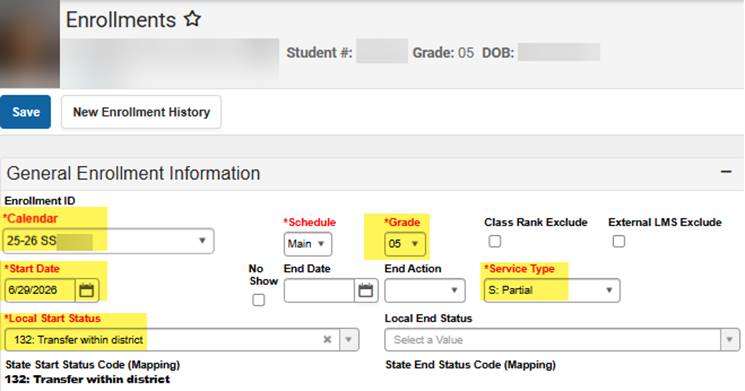
Once the student is registered in the SS building,
change your Context Switcher to the SS building
the student is registered
and then continue following this manual.
Assign Students to a Summer School Program
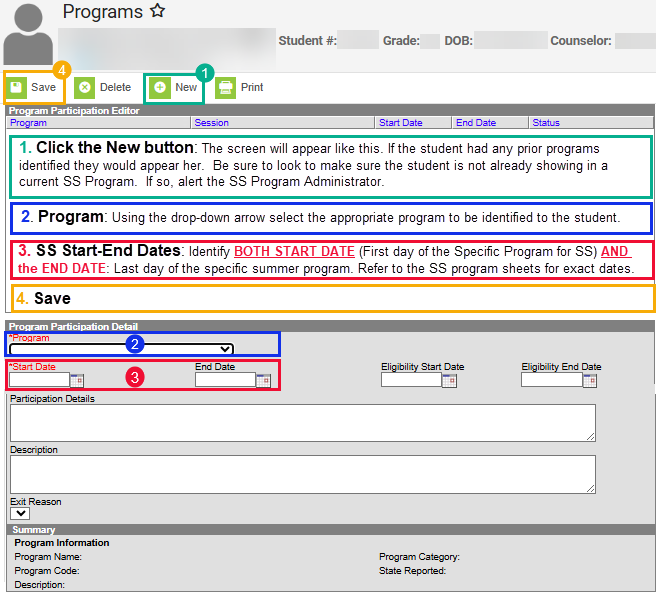
Student Information > General > Programs (Best to use the Related Tools & Select Programs)
Note: This is only done if there are multiple programs in the same SS Building. Please refer to the Program Sheet provided at training for the appropriate program code to identify to the student’s SS record, if applicable. Summer Program codes are highlighted on the below chart:
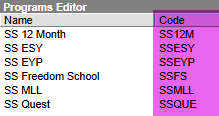
Student must be enrolled in a SS building to be assigned to a Program.
Search student to be added to the Program and follow steps 1-4 identified in the below screen shot:
Be sure to have your SS Program Sheet to refer to for appropriate program code as well as Start and End Dates.
Summer School Transportation
Student Information > General > Transportation (Best to use the Related Tools & Select Transportation)
Per DOE: Once the student is enrolled in a SS building, there will be a one-time copy of the student’s current transportation. This should include any special education fields such as: Restraint, Lift, Monitor, and two new fields: Special Transportation (answer yes or no) and Must be met (if the student needs to have an adult waiting in order to disembark from the bus).
You will need to:
- Open the student’s SS Transportation record and click Requests:
- If there is one request:
- Open the request, go to Route Type. If the Route Type does not reflect SS: Summer School close the request (click the cancel button).
- Click the New button and go to step 2 (Start Date) below
- If two requests are listed:
- One is for the regular school year – do NOT change anything with this record!
- The other is for Summer School – to confirm it is the summer school transportation record scroll to the Route Type. You should see SS: Summer School in that field.
- If there is not a transportation request showing:
- Click the New button and go to step 2 (Start Date) below
- If there is one request:
- Start Date: The current date should appear. Do not change it.
*ALERT PER DOE & KELLY SHAHAN: NEVER USE A FUTURE DATE FOR TRANSPORTATION REQUESTS, ESPECIALLY FOR SS!
- Accommodations: DOE shared these should copy over. Change/update if applicable to the students active IEP/504.
- Route Type:
- Note: ALL SS Route Types should start with SS-.
- SS: Summer School: Transportation To and From the summer program. This is the default Route Type for Summer School
- SS: T: Transportation To Only
- SS: F: Transportation From Only
- SS: NT: No Transportation
- SS: AU: SS Autism
- SS: SE: SS Special Ed
- SS: RG: SS Regular
- Note: ALL SS Route Types should start with SS-.
- Pick-Up Location and/or Drop-Off Location:
- If the SS transportation address Pick-Up and Drop Off Locations match what is on the registration sheet, click Save.
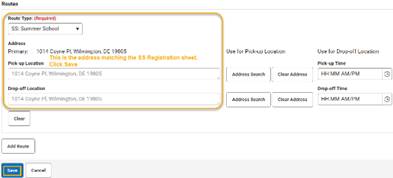
b. If the SS transportation Pick-up and/or Drop Off Location address does not match the registration sheet, you will need to update the student’s SS Transportation record to reflect the appropriate SS address to be used.
In the screenshot example below the student has a:
- Pick-up Location of: 2916 Duncan Rd, Wilmington, DE 19808
- Drop-off Location of: 2110 Edwards Ave, Wilmington, DE 19808
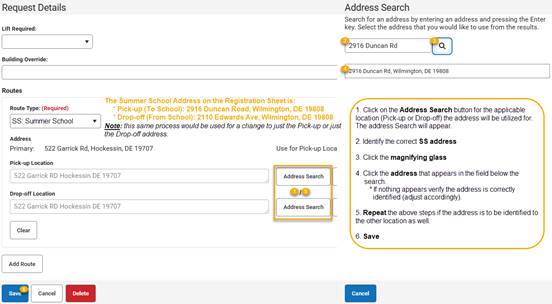
Both the Pick-up Location and Drop-Off Location should reflect the appropriate address:
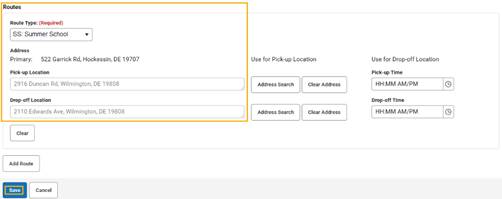
- Save
Go back to Summer School Student Registration
Remember to change your Context Switcher to the regular school year calendar before searching for the next student.
Repeat the above steps for each student to be registered for Summer School.
How to Pull a List of Summer School Students by Program
When you are in Infinite Campus you will need to have your Context Switcher identified to the current year SS building name.
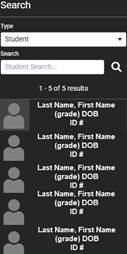
Magnifying glass icon from the green bar
Type: Student
Click Advanced button at the bottom of the screen
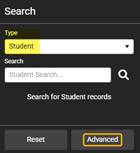
Scroll to the bottom of the screen and click on the “Select Filter” button:
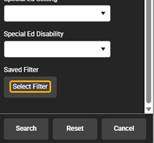
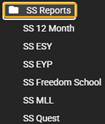
A list of reports and folders will appear.
Go to the: Summer School folder – the list of reports will be available. Select your program from the list to generate the report.
The list of students tagged to the selected program will appear in the search area: