Running the Household Quality Report
Purpose: The purpose of this document is to describe how to run the Household quality control report. This report was built with the primary purpose of helping the district clean up Households in Infinite Campus.
Steps:
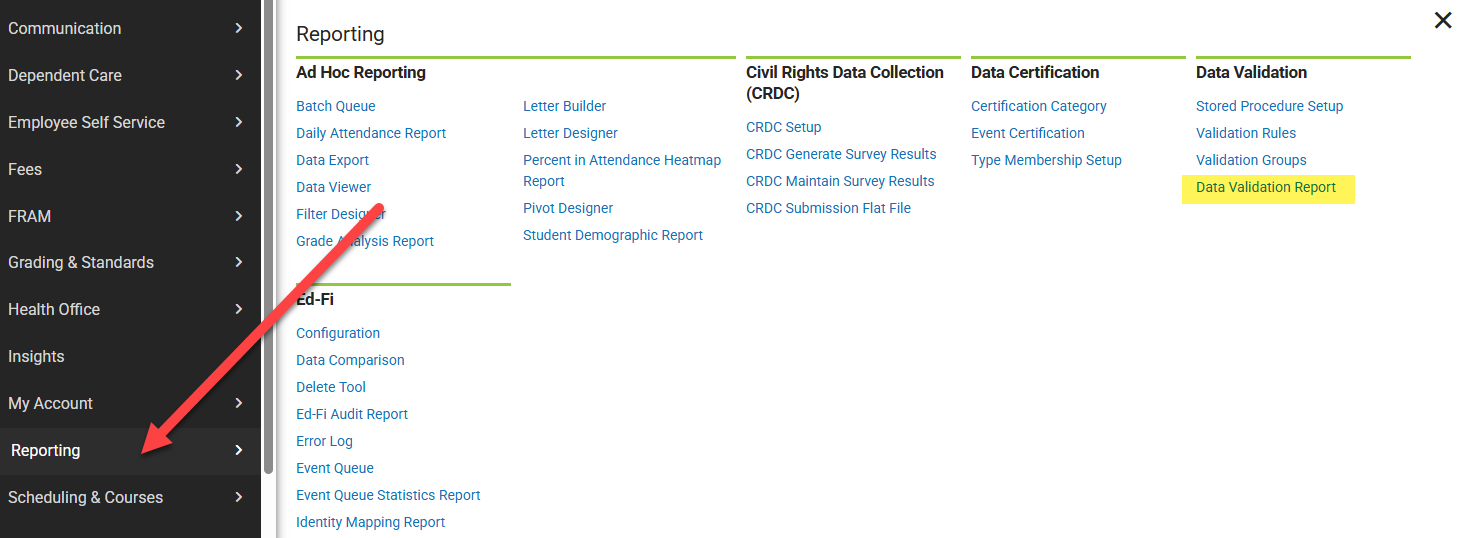
- Log into Infinite Campus and navigate to Data Validation Report on the Reporting Tab.
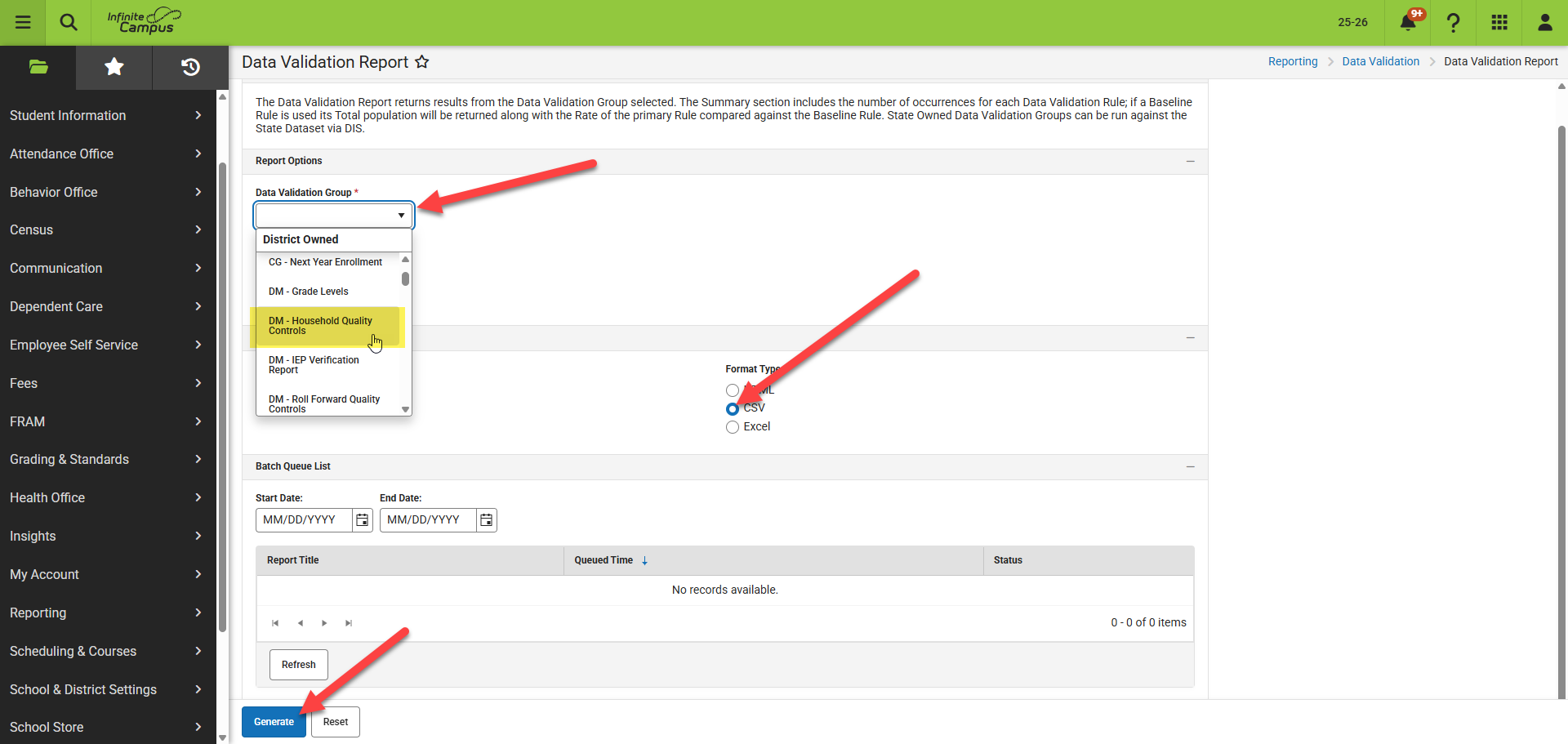
- On the Data Validation Report page:
- Select the DM - Household Quality Controls report from the Data Validation Group dropdown.
- Select the CSV button under Format Type.
- Then select the Generate Button.
- This will generate and download the report.
- Delete the top row on the Excel File.

- The report has the following Headers.

- The Link, Issue Severity, and Issue Code headers.
- Link column - provides a link to the page in Infinite Campus where the issue can be resolved (must be logged into I.C.)
- Issue Severity Column - will inform you of the importance of the issue.
- Critical - this issue could prevent students from showing up in 3rd party applications, prevent them from Rolling to the correct School next year and/or prevent them from receiving necessary District information.
- Warning - This is an alert that has the potential to cause issues with a student in the system, similar to the Critical issues.
- Info - This is an informative warning that should be investigated. In some cases there may not be an issue, but each case should be double checked.
- Issue Code - This column is meant to inform you of the specific code that is generating the error.
- Household Missing Mailing or Physical Address - A student must have an active Mailing and Primary Physical address. A lack of address can affect everything from transportation to the mailing of Report Cards.
- Household Missing Primary or Physical Address - Students should have a single Primary Household Address. Students without primary household or physical address can cause issues with transportation, roll forward, as well as third party applications.
- Household Only Member - This alert indicates that the student is the only member in the household. This may be appropriate for student who are currently over 18, but should be double checked.
- More than Two Households - This issue code indicates that a student is currently registered to more than two separate households. If a student has more that two households, double check that they are all appropriate for the student.
- Multiple Primary Mailing Addresses- Student has more than a single Primary mailing Address. A student should only have a single primary mailing address. Multiple mailing addresses can cause issues when mass mailings are prepared.
- No Active Household- Student does not have an active household. All students should have a single Primary household.
- Private Household Address - The household is marked as private. This will prevent the address from being communicated across 3rd party applications (please note there are very valid reasons for an address to be marked as Private)
- Unvalidated Household Address - These are household that have a validation issue. This scenario can occur when an address is enter by the district but the validated address is slightly different. The address may also need to be sent in for validation.
Please note: The file will sort by student then by severity. This is important due to the fact that some students may have multiple household issues. If you use the CSV or Excel to filter a column by severity or Issue, it is possible you may not get a full picture of all of the students households issues.